
TL;DR
Video voiceovers used to come in one voice. Now you pick the language your listing is narrated in — 8 of them — and then the voice that reads it, from 4 native voices per language. That's 32 voices, and you can listen to a sample of each before you generate anything.
One voice was one voice too few
Until now, every voiceover Pedra generated came out sounding the same. That is fine once. It is not fine when you publish a video a week and they all open with an identical narrator, or when you are selling in Milan and the narration arrives with an American accent.
Enough of you told us this — thank you for pushing on it — that it went straight to the top of the list.
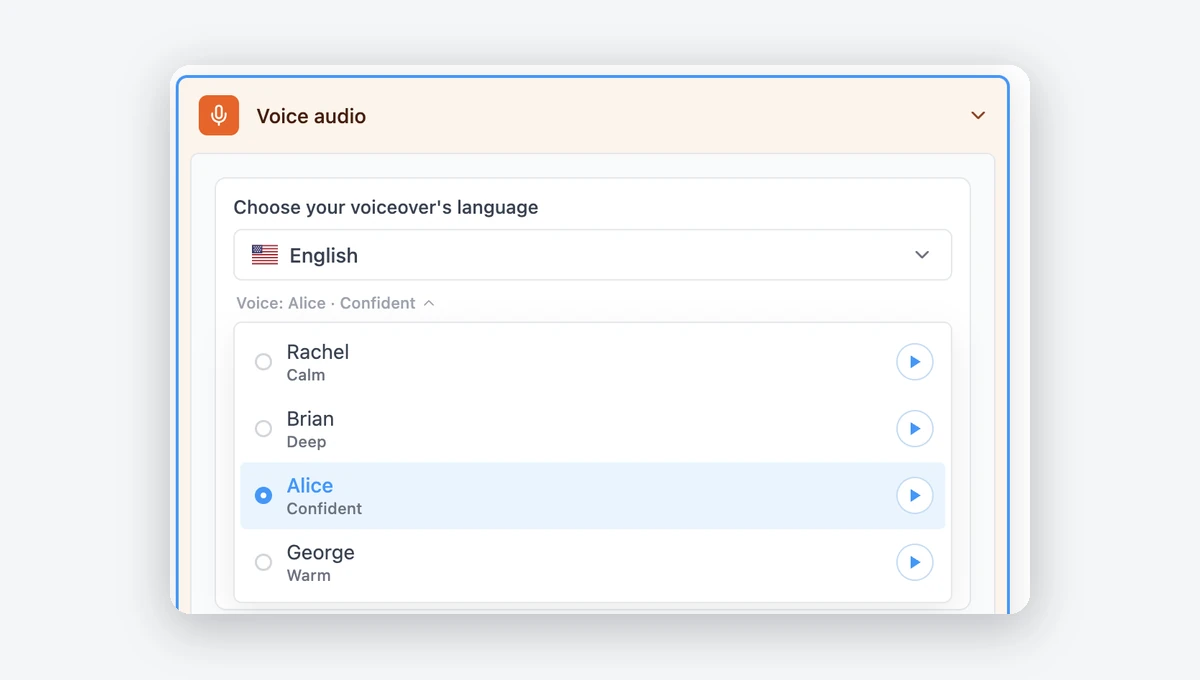
8 languages, 4 native voices each
Under Voice audio in the video editor you'll now find Choose your voiceover's language, with English, Spanish, French, German, Portuguese, Italian, Dutch and Polish.
Pick one, and the voice list underneath swaps to voices that are native to that language. Every list has four, two female and two male, each labelled by character — calm, warm, deep, confident, soft, casual — so you're choosing on how it sounds rather than on a name.
That native part matters more than it sounds. A narrator can technically read any language, but it carries its own accent while doing it. A French listing read by a British narrator sounds exactly like what it is. So a language only ever offers voices that belong to it — no foreign-accented options padding out the list.
Listen before you spend anything
Every voice has a play button next to it. Tap it and you hear a real sample in that language, instantly, before you generate a single second of audio.
Then it's the usual flow: write your script or hit Write with AI, click Generate audio, and optionally tick Show subtitles in video.
What changes for videos you've already made
Nothing. Videos you have already generated are finished files — they don't re-render.
For new ones: if you narrate in English or Spanish, the default voice is the same one you have been getting, so nothing changes unless you want it to. The other six languages now default to an actual native voice instead of an English narrator reading through an accent — which is the whole point.
Try it
Open a property in Pedra, go to Video, and expand Voice audio. The language picker is the first thing there.