
Virtual Home Staging Guide
Master virtual home staging with our easy guide. Transform empty spaces into attractive, furnished rooms.
How can I create a virtual home staging?
With Pedra, you can create virtual home stagings in just a few clicks.
To start, access the "Edit with AI" menu and select "Furnish". Select the room type and the style, and in less than a minute you'll have your virtual home staging image ready to download.
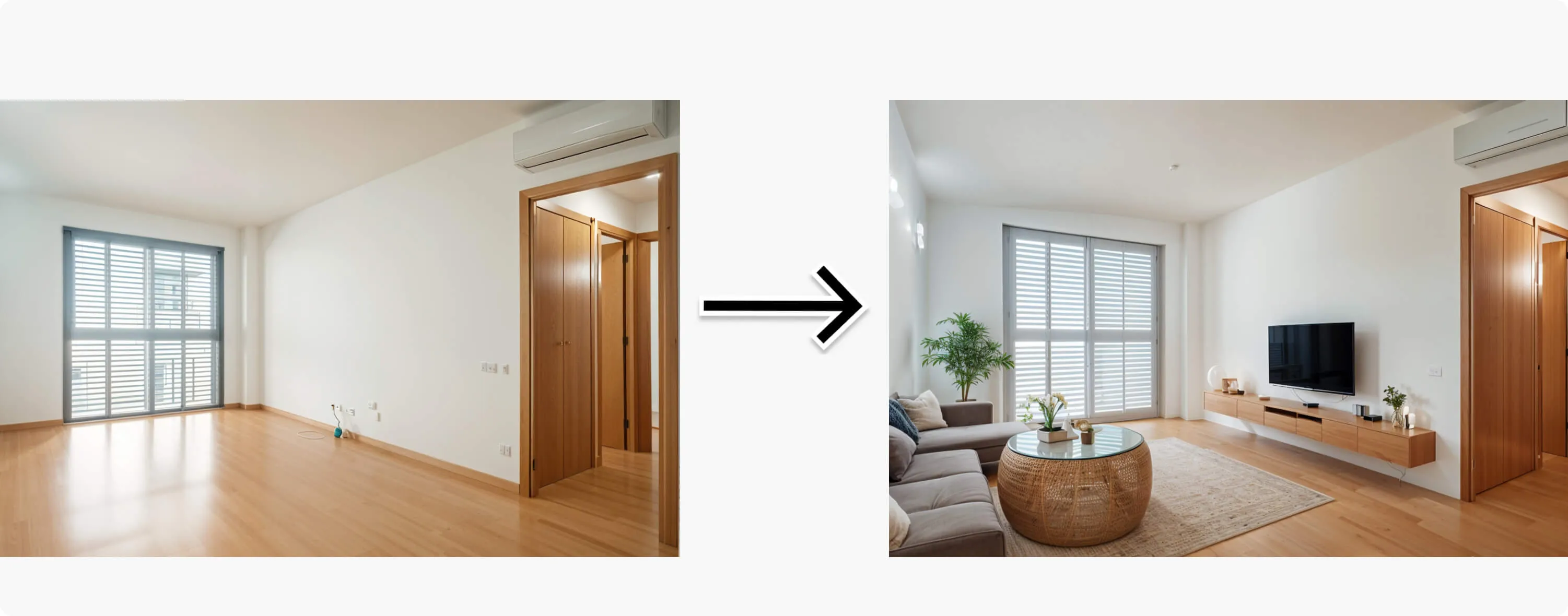
How to create a virtual home staging for a new construction?
If you have a new construction property without furniture, you can use Pedra's virtual home staging to make it more attractive to potential buyers and sell it faster.
To get your virtual home staging, follow these simple steps:
- Upload the images you'd like to create virtual home staging for
- Select one of them to start editing
- Click on "Edit with AI" and then click on "Furnish"
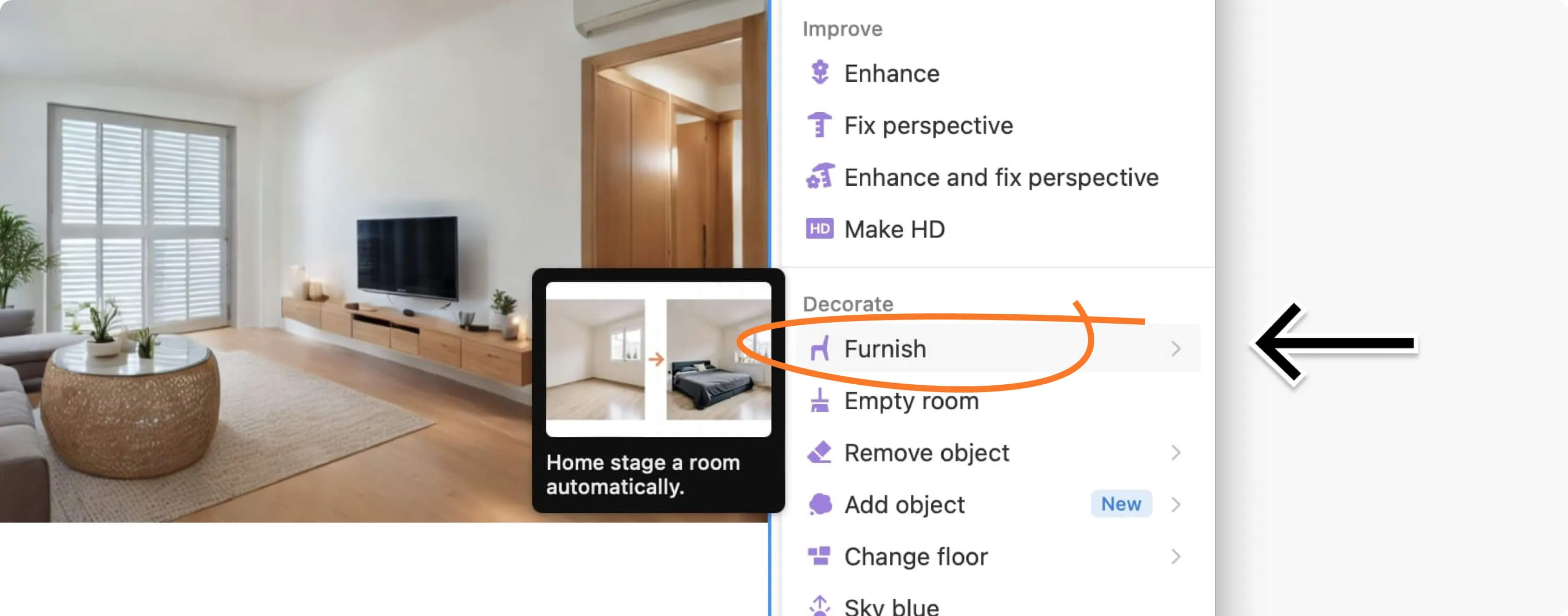
Within "Furnish" you'll need to follow these steps:
-
Select the room type. If you choose bedroom, Pedra will place bedroom furniture: bed, nightstand, etc. If you choose living room, Pedra will place sofas, TV, rug, etc.
-
Select the style. The style determines the type of furniture added to the space. Hover over each style to preview the same room furnished in that style. You can also choose "Use furniture from another image" to furnish the room with the furniture from a photo you upload.
-
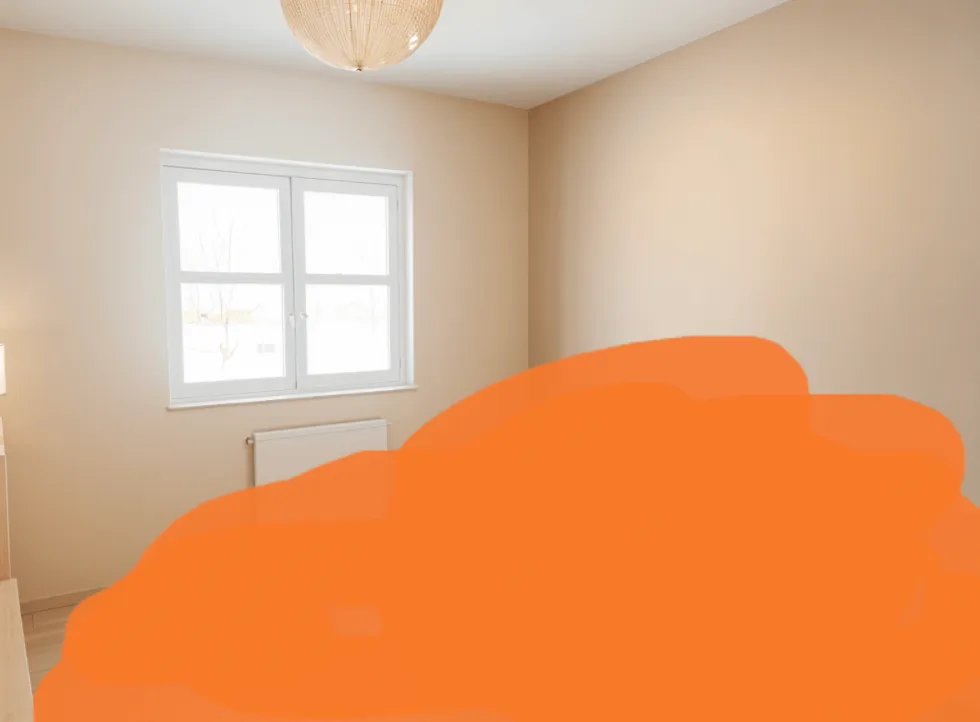
Choose where to add the furniture. With "Whole photo", Pedra decides where to place the furniture and how much space it occupies. With "Draw area" you paint on the image to indicate where the furniture appears.
Then click "Generate image". Each image costs 1 credit.
Common issues when creating virtual home staging:
- If the photograph is of very poor quality, the results may not be good
- If the ceiling is not visible, the furniture may appear disproportionate
- If you want the furniture in a specific spot, use "Draw area" and paint that part of the floor. Bear in mind that only the parts drawn will be furnished.
How to create virtual home staging for second-hand properties?
If you have a second-hand property, whether furnished or unfurnished, we recommend using the "Renovation" option.
To get your virtual home staging for a second-hand property, follow these simple steps:
- Upload the images you'd like to create virtual home staging for
- Select one of them to start editing
- Click on "Edit with AI" and then click on "Renovation"
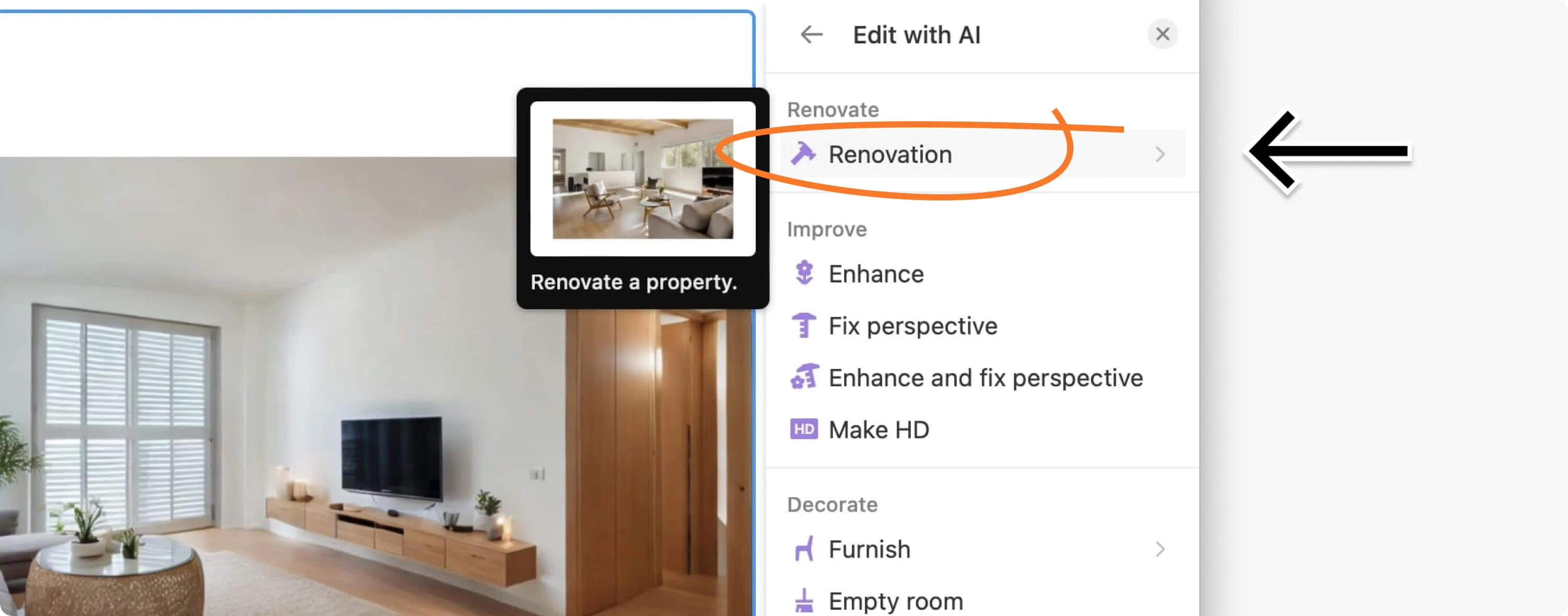
Within "Renovation" you'll need to follow these steps:
-
Select the space type. Leave it on "Auto" and Pedra will interpret what type of space it is. If you want the photo renovated as a living room, select living room.
-
Select the style. We recommend "Minimalist" or "Scandinavian" for more neutral results. Hover over each style to preview the same room renovated in that style. You can also upload an image of the style you want and renovate based on that style.
-
Choose the furniture: "Auto" adds furniture only if the space is empty, "With furniture" always furnishes it, and "Empty" leaves the renovated space without furniture. As we're creating virtual home staging, choose "With furniture".
Pedra renovates floors, walls and finishes while keeping the walls, doors, windows and camera angle of the original photo. Each renovation costs 1 credit.
Why should I create virtual home staging?
The first time a potential buyer sees a property for sale is on the internet. For that reason, it's extremely critical that the first thing they see evokes positive feelings and interest.
Virtual home staging helps generate good feelings. With good virtual home staging, you can bring empty spaces to life or show the best version of a property that needs renovation. It's an ally for selling properties quickly.
Examples of virtual home staging
Here are several examples of virtual home stagings created with Pedra: