
TL;DR
Edit via prompt, the most used edit tool in Pedra, is now much more precise. You write what you want changed, and Pedra changes exactly that:
- The edit you typed. Move a sofa, change a floor, clear a terrace or blur the view, and that is what happens.
- The rest of the photo stays as it was. Same camera angle, same walls, doors and windows, same furniture you did not mention.
- Your reference photos are used. Attach a sofa, a table or a tile, and that is what appears in the room.
It works on photos and on 360 tour panoramas, on every plan, and still costs 2 credits per edit. Every example on this page was made with the new version, on Pedra's demo photos, with no retouching afterwards.
What You Can Do With It
Move furniture
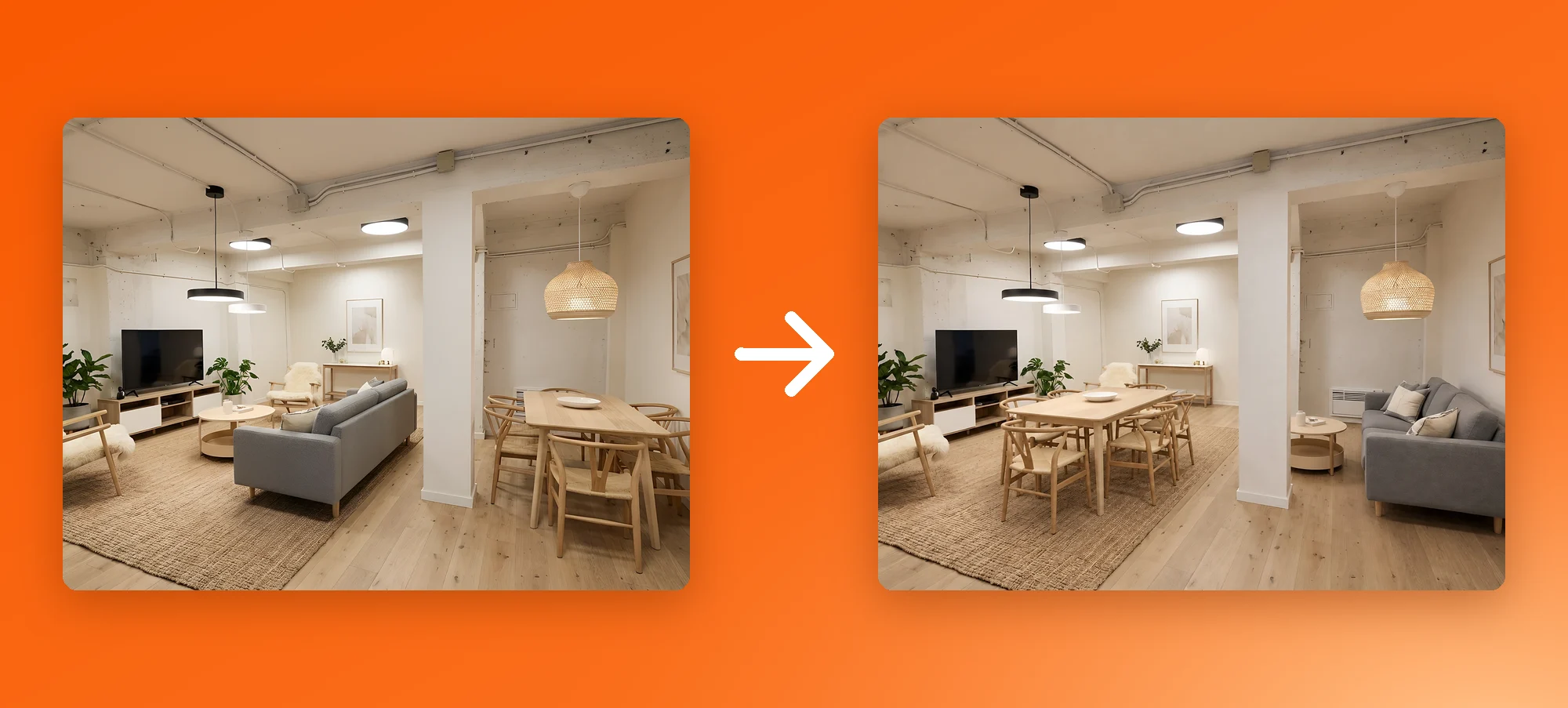
Prompt: "Swap the grey sofa and the dining table: put the dining table with its chairs on the rug where the sofa is, and the grey sofa on the right where the dining table is."
The two pieces trade places, and the rest stays put: the TV unit, the lamps, the rug, the column, the camera angle. That is the image at the top of this page.
Change a floor or curtains
Prompt: "Change the floor to large light grey stone tiles and the curtains to beige linen."
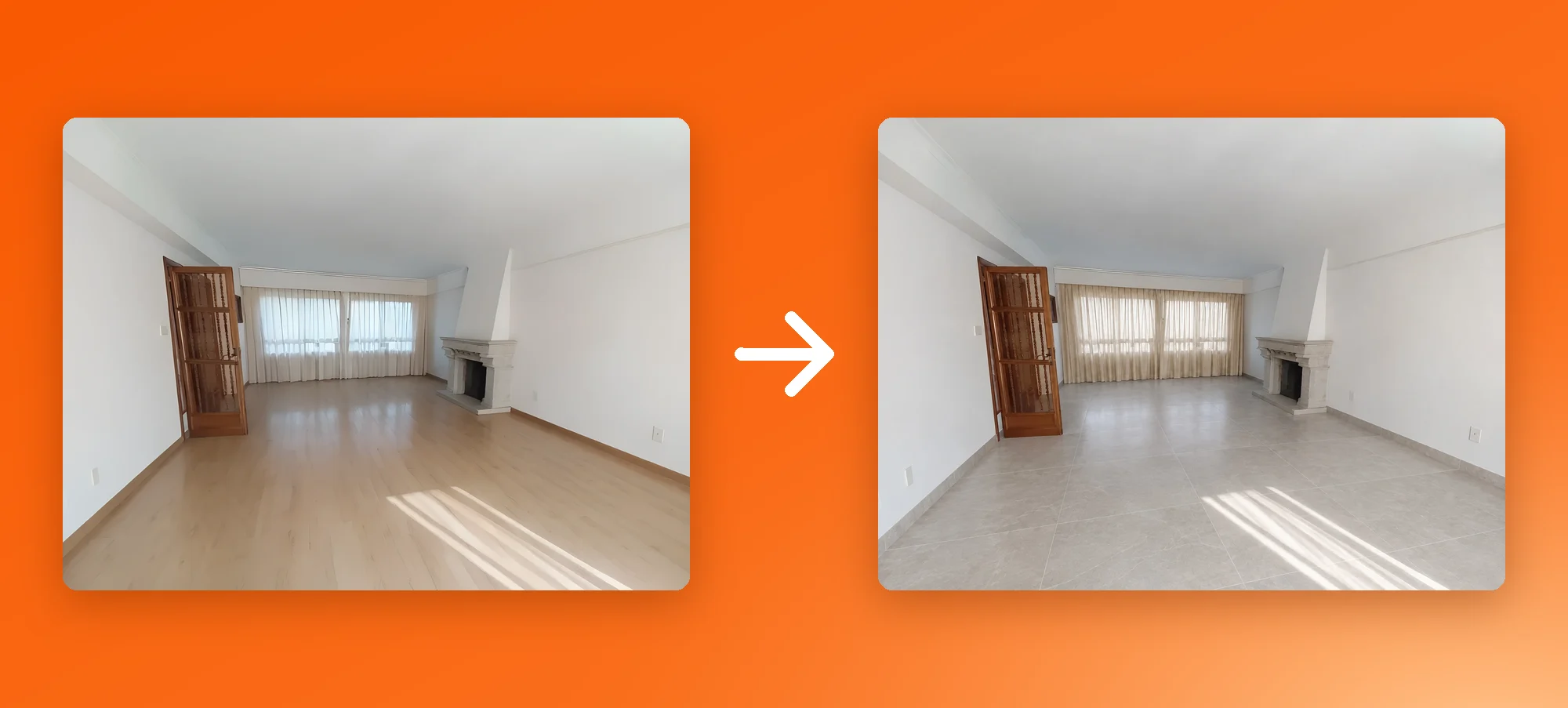
The floor and the curtains change. The door, the fireplace, the windows and even the sunlight on the floor stay where they were, so buyers see the same room with a new finish.
Clean up clutter
Prompt: "Remove the clutter: the black tarp, the bikes, the pink mattress, the plastic chair, the crates, buckets and everything piled against the wall. Keep the plants and pots."
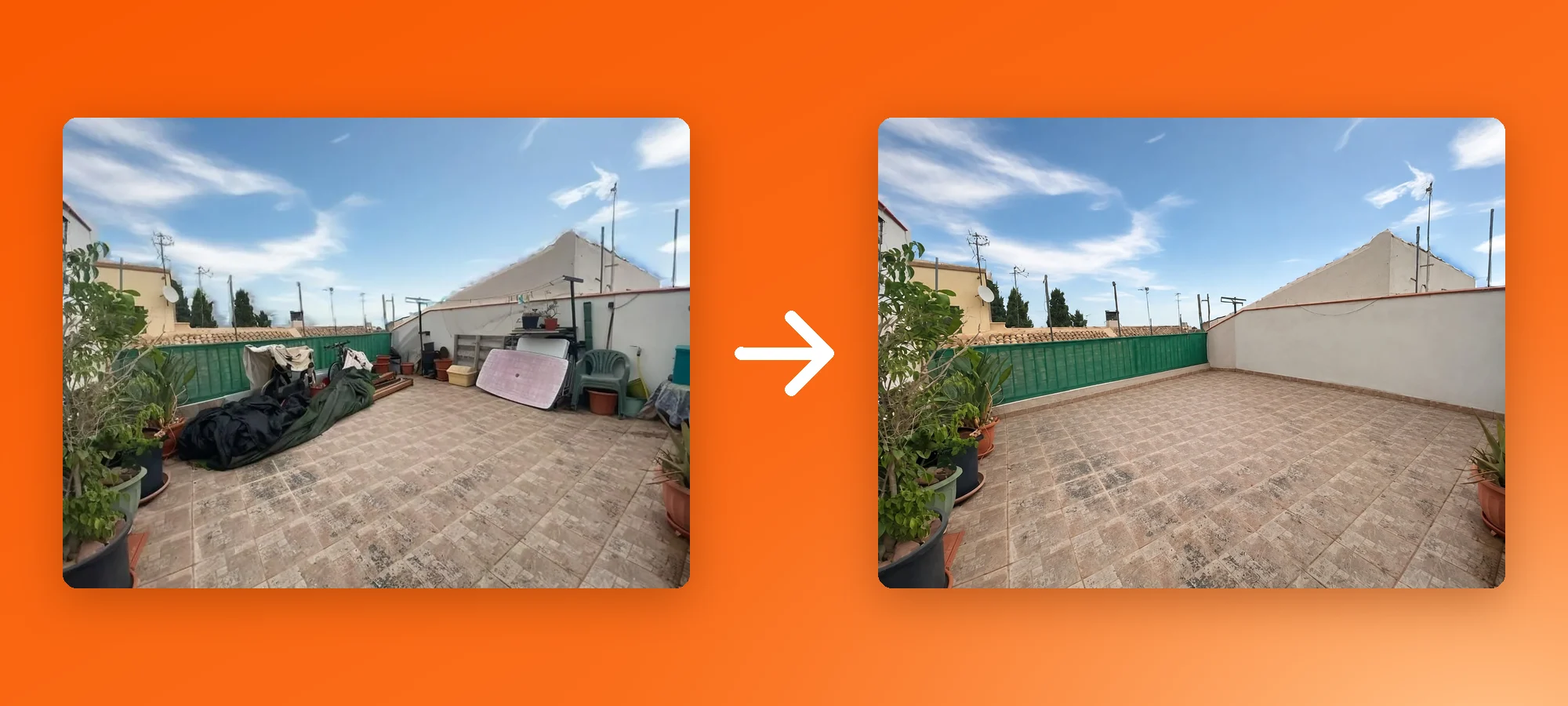
The terrace is cleared and the plants you asked to keep are still there. Nothing new is added where the clutter was.
Blur the surroundings
Prompt: "Blur the neighbouring rooftops, the town and the mountains in the background. Keep the pool, the terrace and the house sharp."
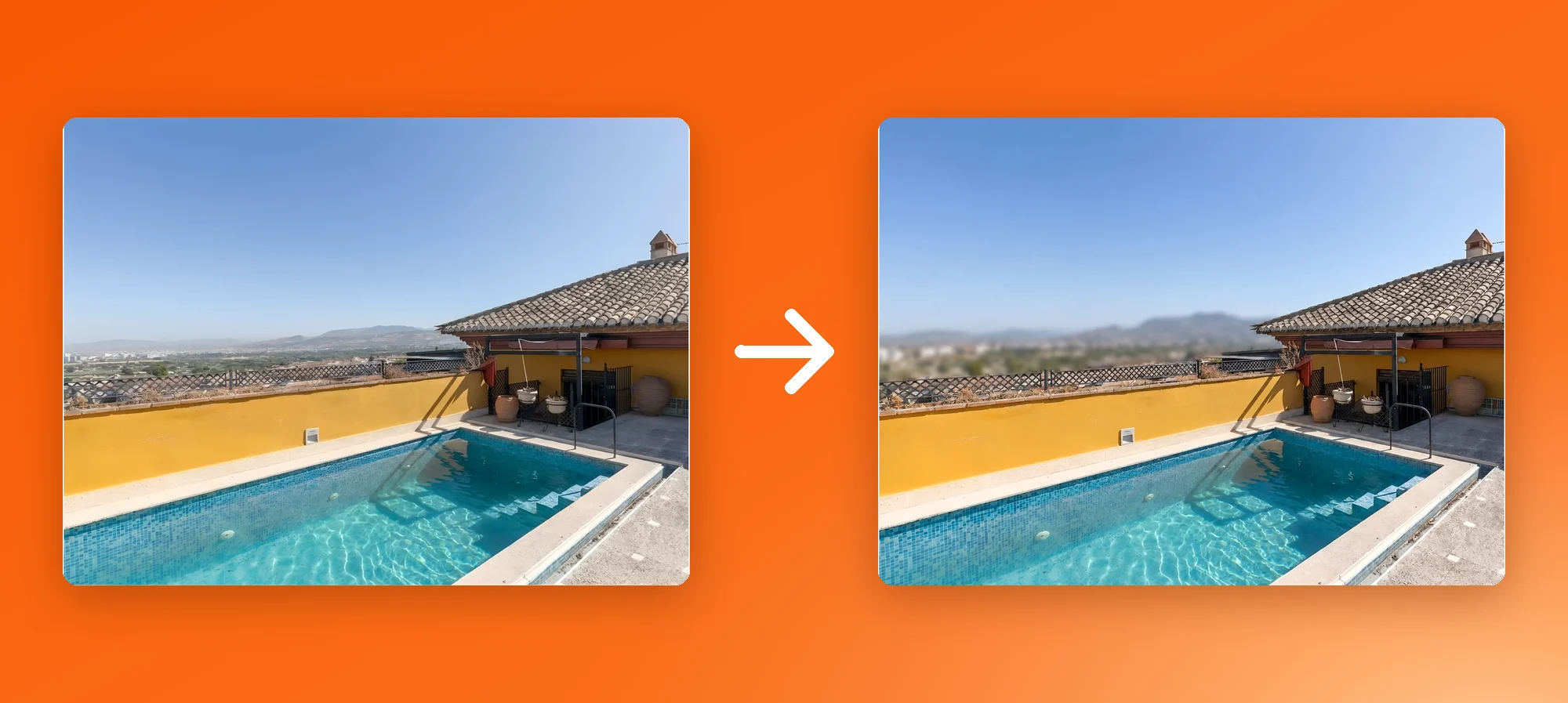
Useful when neighbouring houses should not be recognisable, or when you want the eye on the property instead of what is around it.
Use a reference photo
Prompt, with two reference photos attached: "Add the sofa from reference 1 along the dark wall on the left, and the table from reference 2 in front of it."
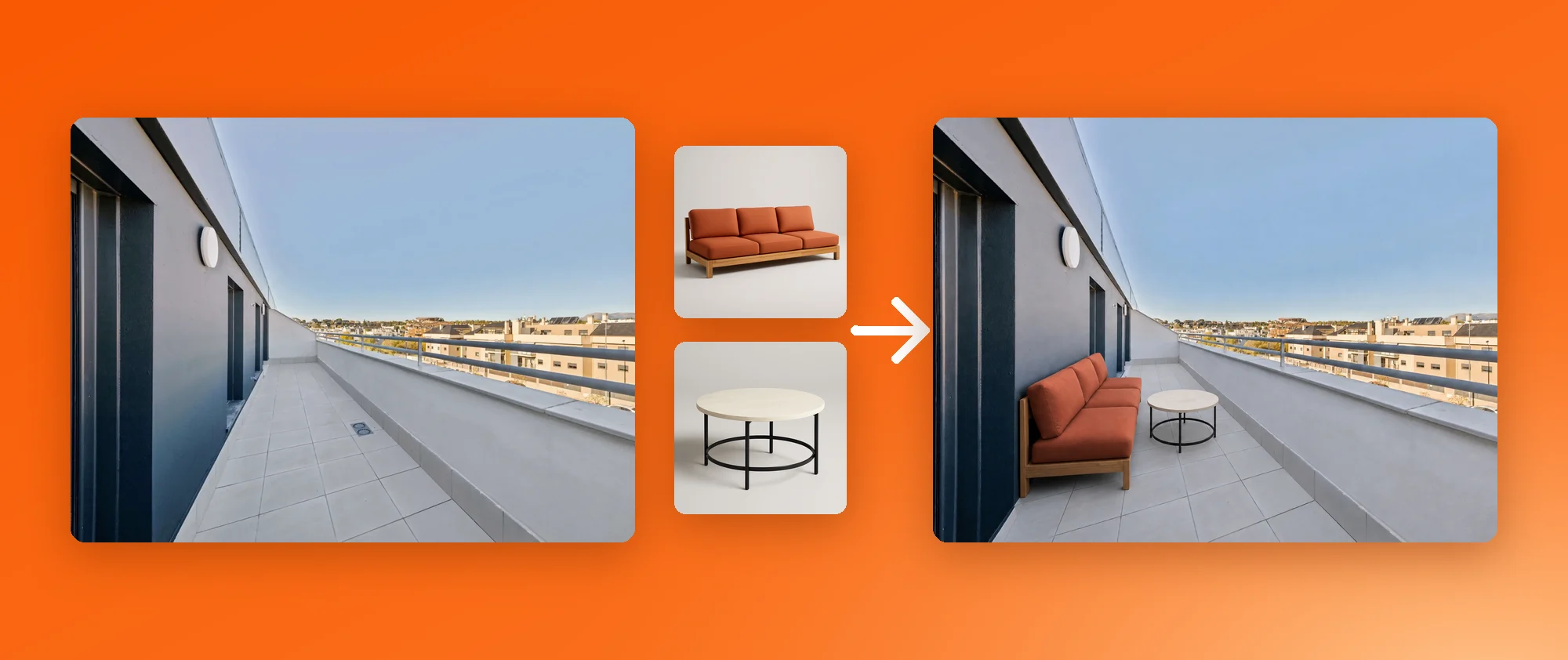
The sofa and the table in the result are the ones in the reference photos, at the right size for the terrace and in its light. It works for furniture from a catalogue, a finish a seller has chosen, or a piece from another listing. You can attach up to 3 references per edit.
On 360 Tours Too
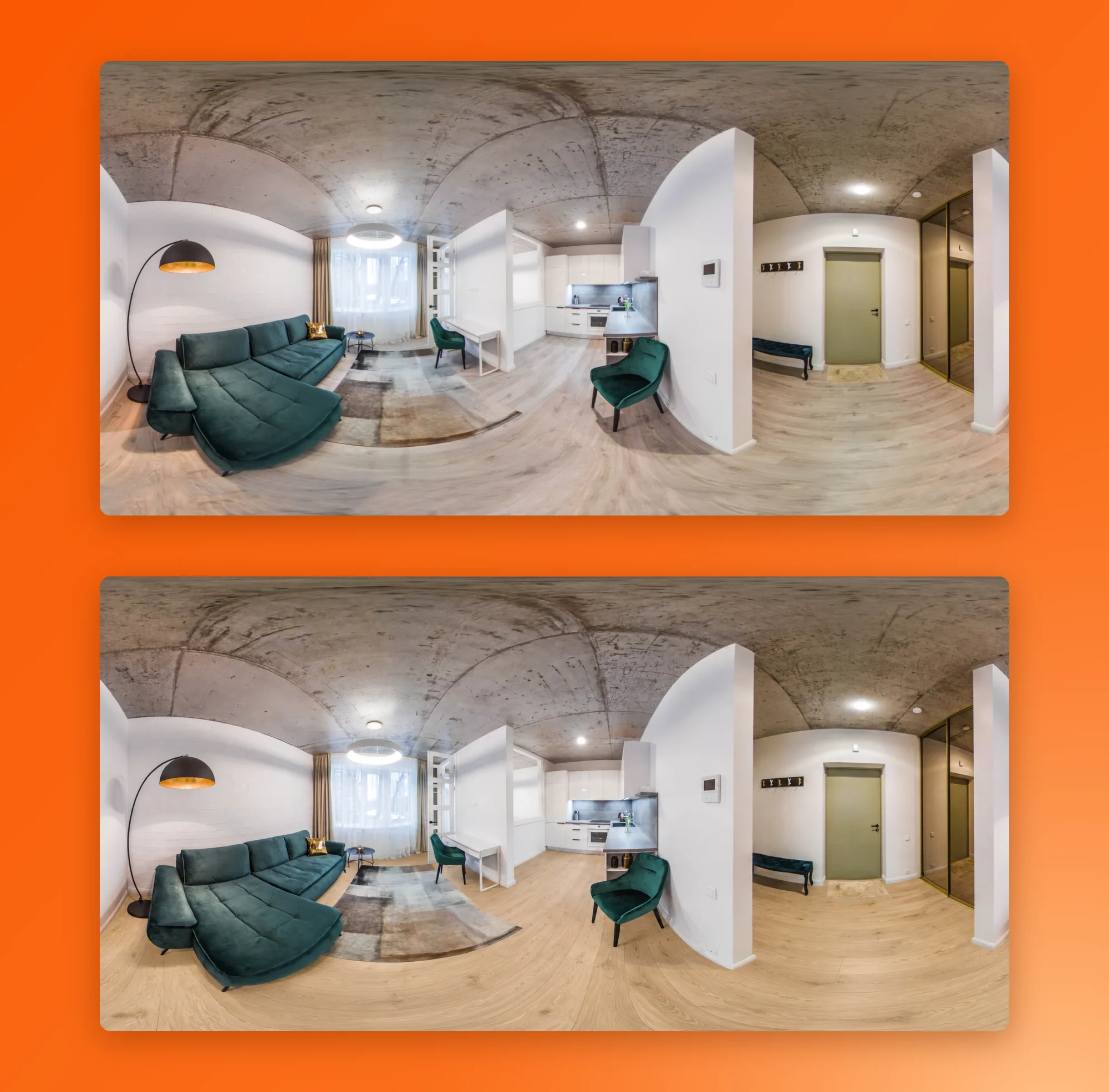
Edit via prompt works on the panoramas of your 360 virtual tours with the same precision. Change the floor or a piece of furniture once, and it changes across the whole room, all the way around.
Prompt: "Change the floor to light oak wood planks."
How to Use It
- Open your property and select the photo, or the 360 photo in your tour.
- Click Edit with AI, then choose Edit via prompt.
- Write what you want changed.
- To use a specific item or finish, click the photo icon and add a reference image (up to 3, on photos).
- Click Generate image. It costs 2 credits per photo.
Tips for Better Prompts
- Say what and where. "Move the sofa to the left wall" works better than "rearrange the room".
- One sentence per change. Several changes in one prompt are fine; list them one after another.
- Say what to keep when it matters: "Keep the plants and pots."
- Name your references. Attach the photo and refer to it in the prompt as "reference 1", "reference 2".
- Don't describe the whole room again. Only write what should be different. Everything else is kept.
Also on the API
The edit endpoint in the Pedra API (/api/edit_via_prompt) uses the same method as the app, and so do the Pedra SDKs and the Pedra MCP server. If Pedra is built into your CRM or portal, your edits are more precise from today too, with no change on your side.
Edit via prompt also powers adding your own furniture with reference images, which gets the same precision.
FAQ
What is Edit via prompt in Pedra? It is the tool that edits a property photo from a sentence you write. You type what you want changed, for example "change the floor to light grey tiles", and Pedra makes that change to the photo.
Will Edit via prompt change the rest of my photo? No. It makes the change you asked for and keeps the camera angle, the walls, doors and windows, and everything you did not mention as they were.
Can I use my own furniture or finishes in an edit? Yes. Attach up to 3 reference photos, such as a sofa from a catalogue or a tile you like, and say in the prompt where each one goes. Pedra uses them in the edit and fits them to the room's light and perspective.
Does it work on 360 photos? Yes. Edit via prompt works on the panoramas of your 360 virtual tours with the same precision, so you can change a floor, a colour or a piece of furniture across the whole room.
How much does Edit via prompt cost? 2 credits per photo, the same as before. It is available on every plan.
Can I use it through the Pedra API? Yes. The /api/edit_via_prompt endpoint uses the same method as the app, and it is also available in the Pedra SDKs and the Pedra MCP server.
How do I write a good prompt? Say what to change and where, in one sentence per change. "Move the sofa to the left wall" works better than "make the room better". If you want a specific item or finish, attach a photo of it and refer to it as reference 1, reference 2 and so on.