A virtual tour for vacation rentals is a 360 walkthrough of the flat that guests open from one link: before booking it shows every room, so nothing is hidden, and after booking the same tour holds the Wi-Fi password, a video of how to open the door and how the appliances work. That second job is what makes it worth it for a rental manager: when check-in is remote, the tour greets the guest for you.
I recorded the whole process on a real holiday flat in Las Palmas, from the 360 photos to the private guest version:
Below: what the tour does for a rental, what to put in the guest version, the public vs private setup, the steps in Pedra and where to share it.
What a virtual tour does for a vacation rental
A rental tour has two jobs, and most guides only talk about the first.
- Before booking: show the real flat. People want to see what a rental really looks like before they pay. A tour shows every room from every angle, so nothing is hidden behind a flattering wide shot. Guests know exactly what they're getting, which means fewer surprises at arrival and fewer complaints after.
- After booking: onboard the guest. The same tour, with info points added, answers the questions guests otherwise send by message or phone: the Wi-Fi password, how to get in, where the keys are, how the hob and the washing machine work.
The second job matters most when check-in is remote. If nobody meets the guest at the door, the tour does it. One Pedra customer runs his guest support from Argentina and Venezuela while his offices are in Spain. He onboards every guest by sharing the tour link, and his team knows every flat without ever having been there.
What to put in the guest version
Put each piece of information in the room where the guest needs it. A guest standing in the kitchen looks for the hob instructions in the kitchen, not in a PDF.
| Room | Info point | What to write |
|---|---|---|
| Entrance | Video | How to open the door or the key box, and where the keys go at check-out |
| Living room | Wi-Fi | Network name and password |
| Living room | TV | How to switch inputs, which remote does what |
| Kitchen | Hob, oven | How to switch them on, any safety lock |
| Kitchen or laundry | Washing machine | Plug it in first, which programme to use |
| Any room | AC or heating | Where the remote is, keep windows closed |
| Balcony | Lock | Close the door at night |
| Any room | Alarm | How to arm and disarm it |
Each info point can carry text, an image, a video or a link, with an icon that tells the guest what it is before they click. For the details of adding them, see how to add info points to a 360 tour.
Public tour vs private tour
Don't put the Wi-Fi password and the door instructions in the tour you show to people who haven't booked yet. Make two tours of the same flat:
| Public tour | Private tour | |
|---|---|---|
| Who gets it | Anyone looking at the listing | The guest, once the booking is confirmed, and your team |
| When | Before booking | After booking, before check-in |
| What it shows | Every room, nothing else | Every room plus info points |
| Goal | More bookings, fewer surprises | No calls at check-in, fewer support messages |
Because Pedra has no per-tour fee, the second tour costs nothing extra. You can also keep a third version just for your cleaning or maintenance team, with notes they need and guests don't.
How to make a virtual tour for vacation rentals in Pedra
You need 360 photos of each room. A 360 camera on site is the quickest; if you don't have one, the Pedra app for iPhone and Android takes the 360 shots with your phone. Which camera to buy is covered in the best cameras for 360 virtual tours.
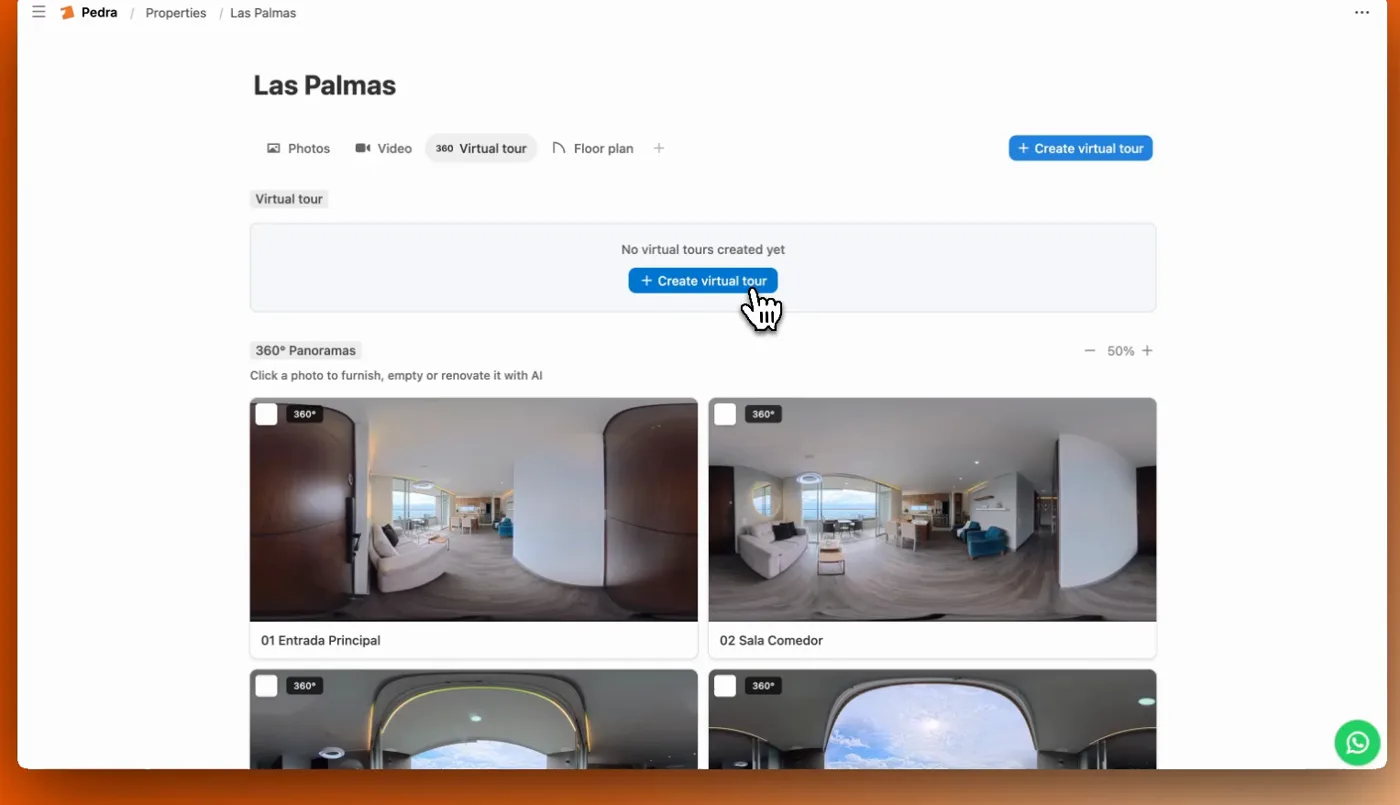
1. Create the tour and upload the 360 photos. Open the property in Pedra and click Create virtual tour.
Upload all the 360 photos of the flat at once.
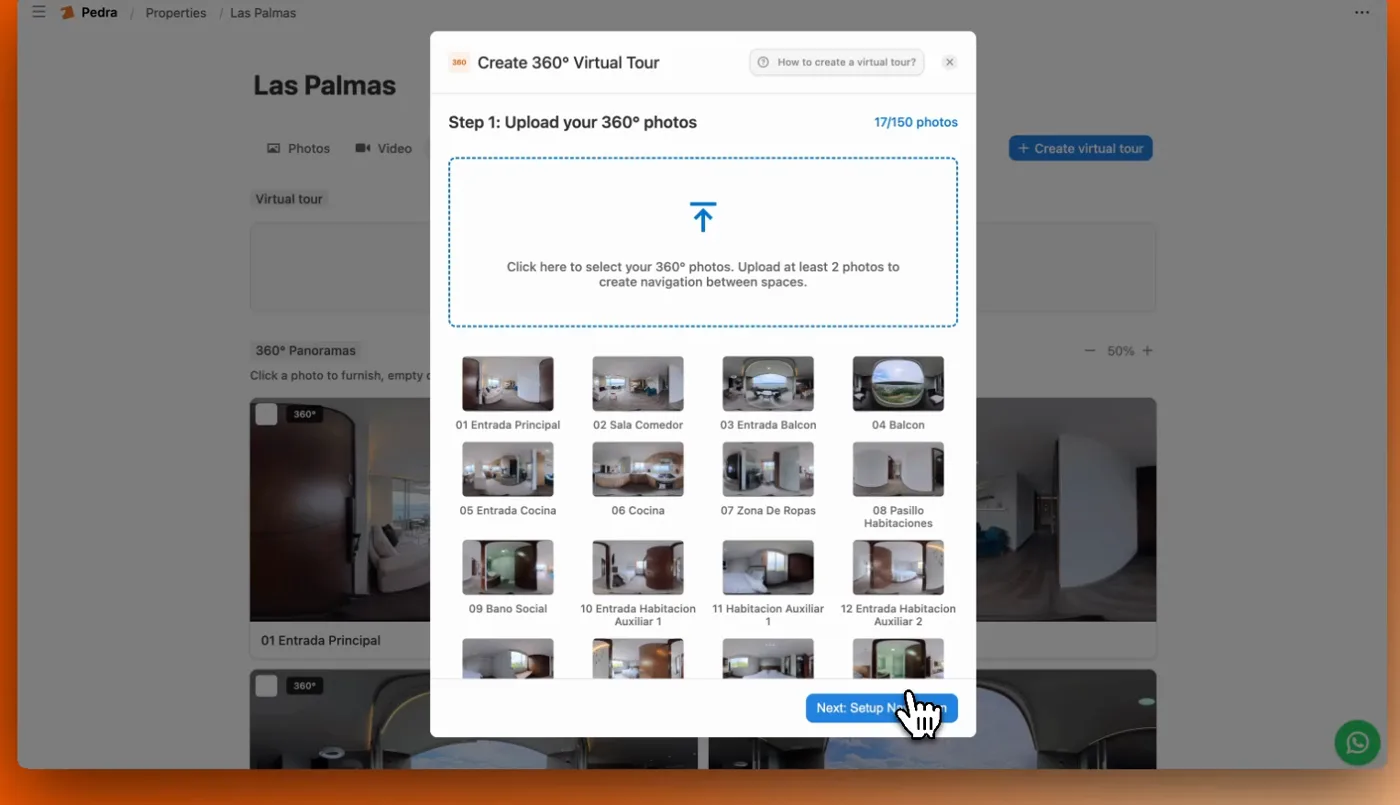
2. Link the rooms. Click Next, then Set up navigation. Choose Manual to place each link yourself, or Automatic with AI: the AI links all the rooms in about 5 to 10 minutes, depending on how many photos the tour has.
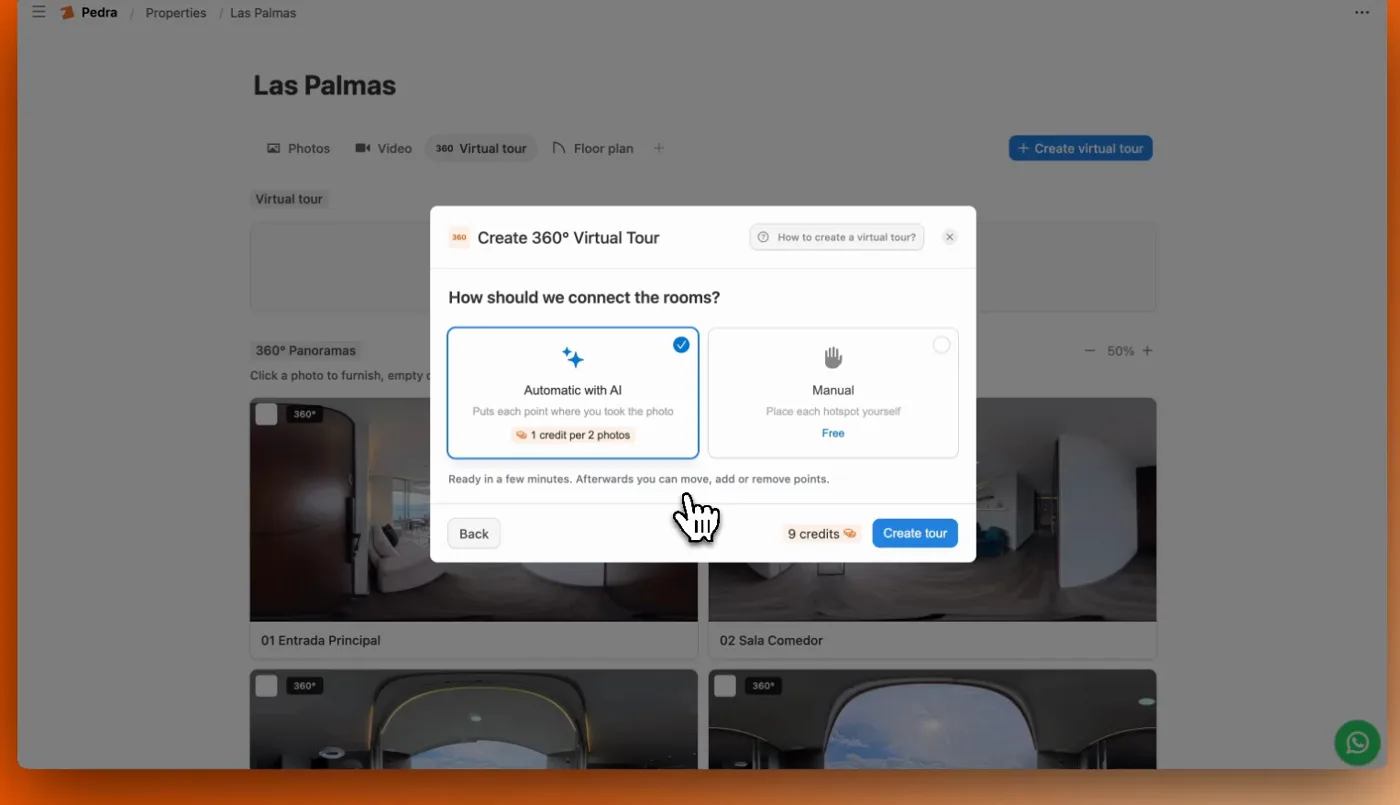
That gives you the public tour, ready to share before booking.
3. Duplicate it for the guest version. Go back to Properties, click the three dots on the flat and choose Duplicate. Rename the copy, for example "Las Palmas · Private".
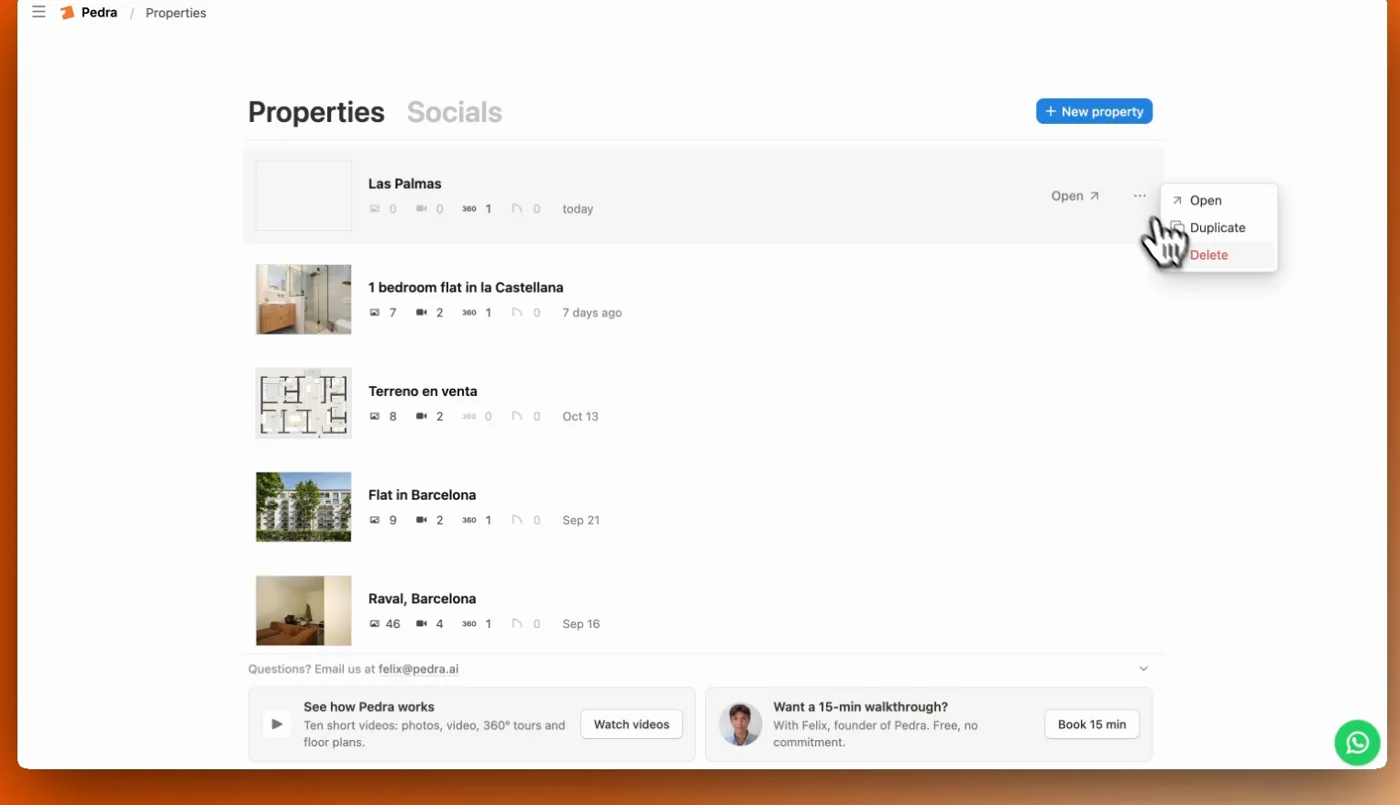
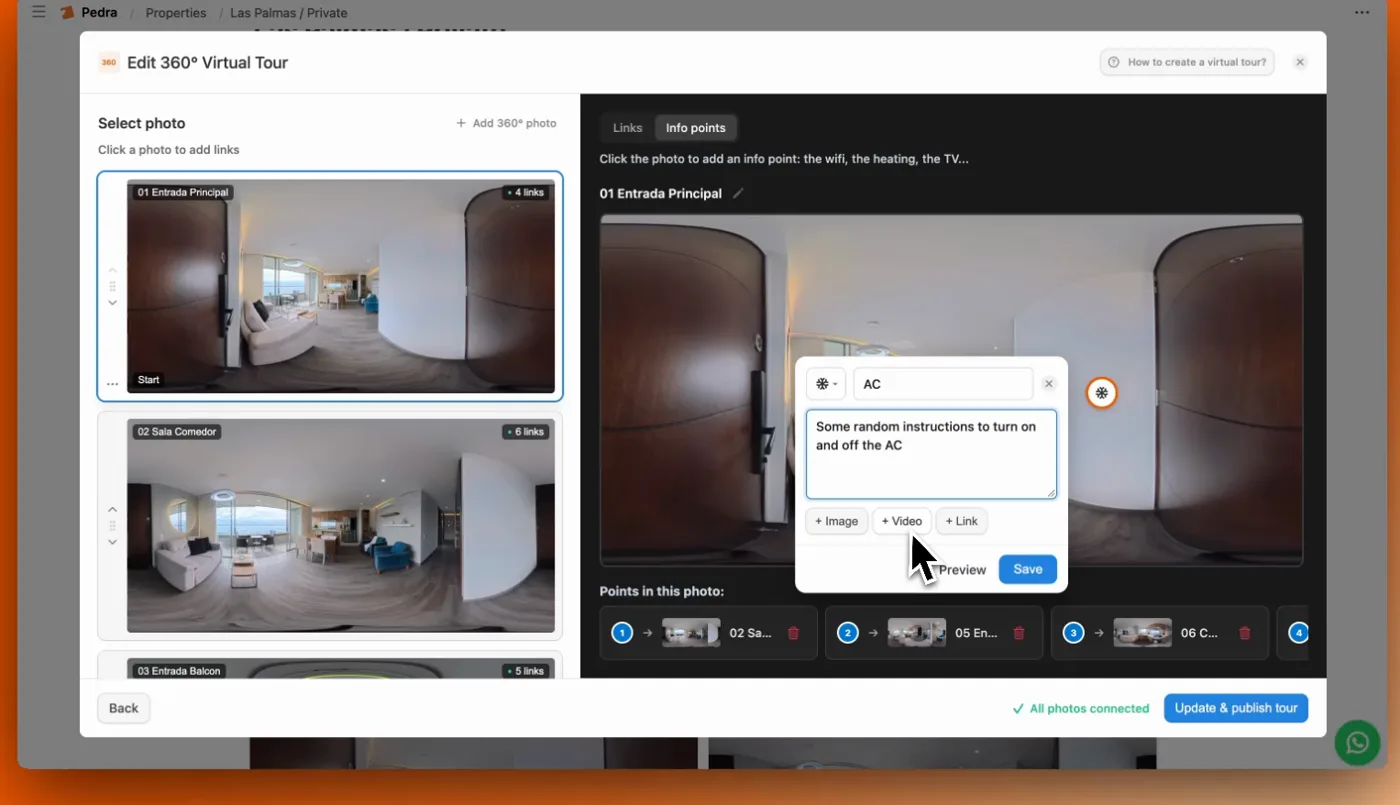
4. Add the info points. On the copy, click Edit tour, open the Info points tab and click on the photo where the point should go. Pick an icon, write the instructions, add an image, a video or a link if it helps, and click Save. Then Update & publish tour.
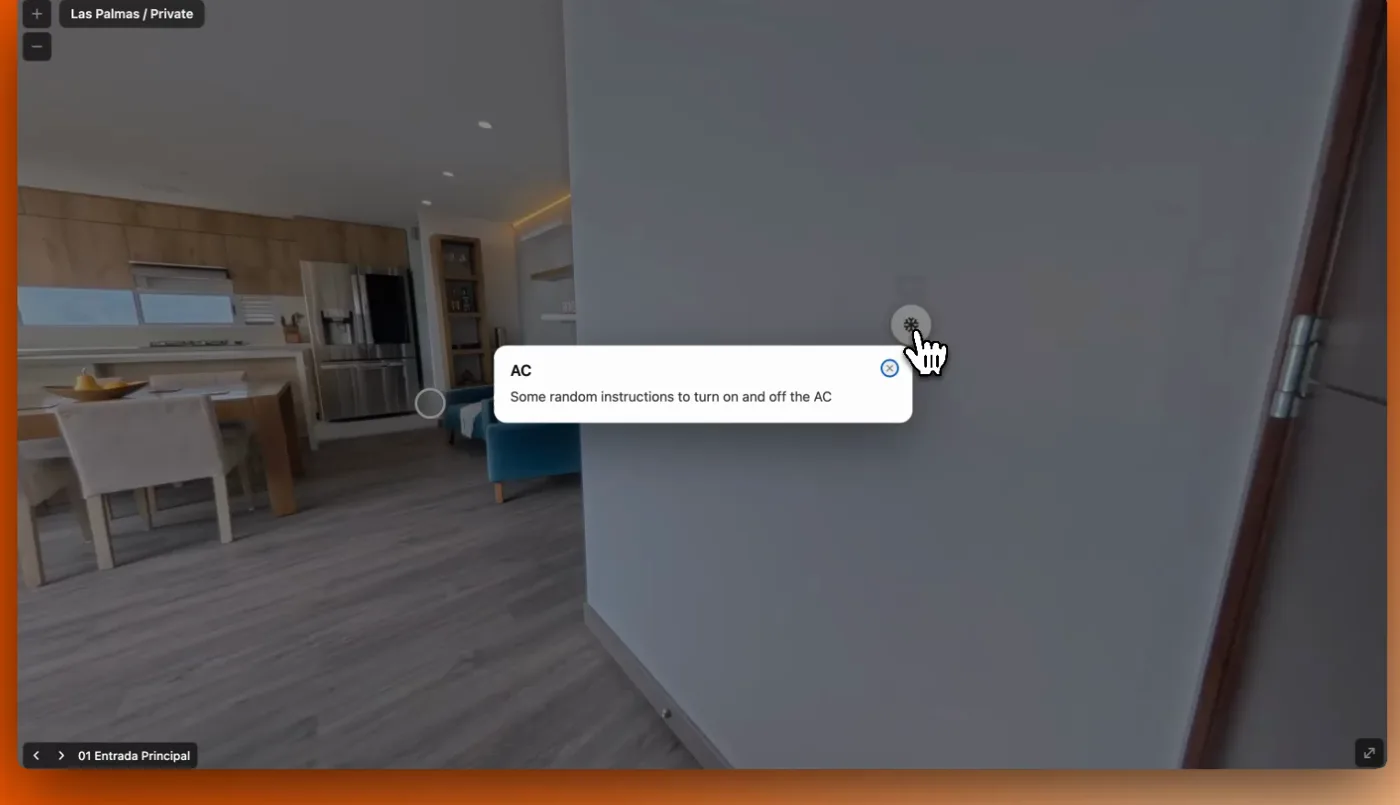
5. Copy the link and send it. Here is the result in full screen: the guest taps the icon and the instructions open on top of the room.
For a general, non-rental walkthrough of the same tool, see how to create a 360 virtual tour.
Where to share the tour
A tour is one link, so it goes anywhere a link goes:
- Your direct-booking website, on each flat's page, so the public tour does the selling.
- The welcome message after booking, with the private tour link and a line telling guests the Wi-Fi and check-in steps are inside.
- WhatsApp or email the day before check-in, so the door video is fresh in their mind.
- A QR code inside the flat, by the door or on the fridge, for guests who lose the message.
Frequently asked questions
What is a virtual tour for vacation rentals?
A 360 walkthrough of the rental, built from 360 photos of each room and shared as one link. Guests move from room to room before booking, and the same tour can hold info points with the Wi-Fi password, check-in steps and how the appliances work.
Do I need a 360 camera to make one?
No. A 360 camera is quickest, but the Pedra app for iPhone and Android can take the 360 shots with your phone. You then upload the photos and the AI links the rooms in about 5 to 10 minutes, depending on how many photos the tour has.
Can guests see the Wi-Fi password before they book?
Only if you put it in the public tour. The usual setup is two tours of the same flat: a public one to show the rooms before booking, and a private copy with the Wi-Fi, door instructions and house notes that you send once the booking is confirmed.
How much does a virtual tour cost per property in Pedra?
There is no per-tour fee. Tours are part of the plan, so you can make one for every flat you manage, and several per flat: a public tour for guests and a private one with notes for your team.
Where do I share the tour with guests?
It is a link, so it goes anywhere a link goes: your direct-booking website, the welcome message after booking, WhatsApp or email before check-in, and a QR code inside the flat.
Make your first rental tour with Pedra: upload the 360 photos, let the AI link the rooms, and duplicate it for your guests.