
How to Clone Your Voice for Real Estate Video Voiceovers
Clone your voice in Pedra in about a minute and narrate your property videos in your own voice, in 8 languages. Step-by-step guide with screenshots and recording tips.
Pedra can narrate your property videos in your own voice. You record yourself once, for about a minute, and from then on your voice is in the voice list next to the stock narrators. Use it for any video, in any of the 8 voiceover languages.
This guide shows every step, with screenshots.
What you need
- A paid Pedra plan. Voice cloning is included in paid plans.
- A microphone. The one in your laptop or phone is fine.
- A quiet room and about a minute. No music or TV in the background.
Step 1: Open the voice list
Open a property, go to the Video tab and click Create video. Pick your photos and click Next.
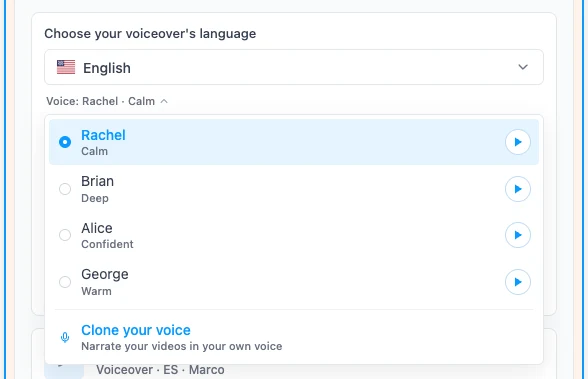
In Audio & branding, add Voice audio. Under Choose your voiceover's language, click the voice name (for example "Voice: Rachel · Calm"). The voice list opens, and Clone your voice is at the bottom.
Step 2: Record yourself
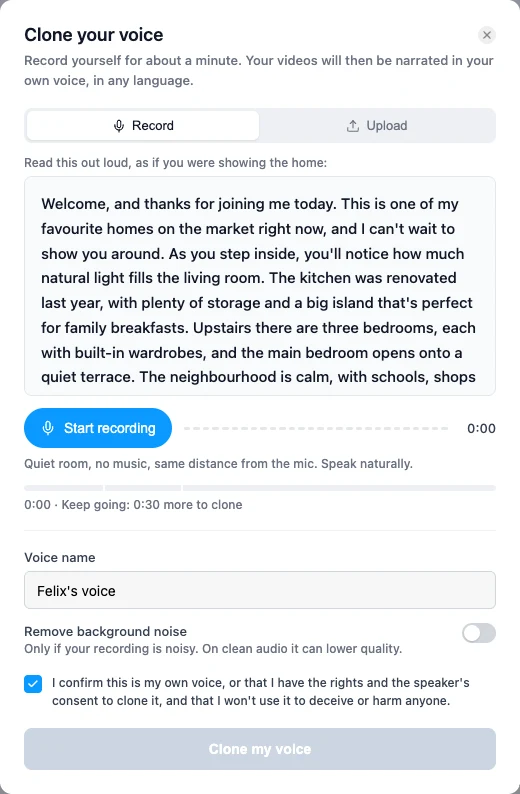
Click Clone your voice. Pedra shows a short text to read: a property walkthrough written in your voiceover language. Reading it like you're showing a home teaches the clone how you sound when you present a listing, not just how you sound.
Click Start recording and read at your normal pace. The bar under the text tells you when you have enough:
- 30 seconds: the minimum to clone.
- About 1 minute: the best result.
- 3 minutes: the maximum. More doesn't help.
You can stop and record more takes. Each take appears in the list, where you can play it back or delete it.
Already have a recording of yourself, like a podcast or a video you narrated? Switch to Upload and drop in the files (MP3, WAV or M4A, up to 10 MB each). Use clips where only you are speaking.
Step 3: Name your voice and clone it
Give your voice a name. Leave Remove background noise off unless your recording is noisy: on clean audio it can lower the quality.
Tick the box to confirm it's your voice (or that you have the speaker's permission), then click Clone my voice. It takes a few seconds, and then Pedra plays your clone reading a property sentence.
Click Use this voice.
Step 4: Narrate your video
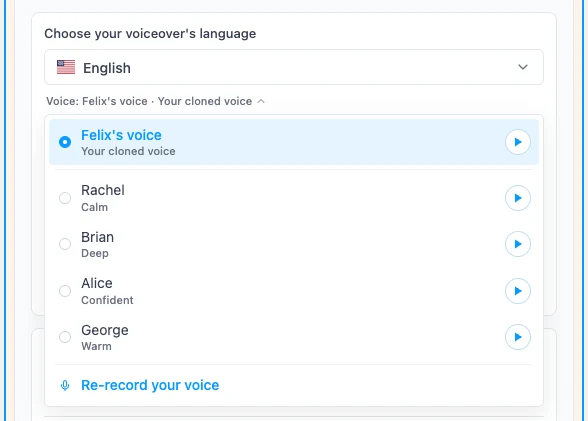
Your voice is now at the top of the voice list as Your cloned voice, in every language.
Write the script or click Write with AI, then click Generate audio. Each voiceover costs 1 credit. Turn on Show subtitles in video if you want captions, and generate your video as usual.
To narrate in another language, change the language at the top. Your cloned voice reads the new script with your own accent.
Tips for a clone that sounds like you
- Record in a small, furnished room. Empty rooms echo, and the clone copies the echo.
- Keep the same distance from the microphone for the whole recording.
- Speak the way you talk to clients. The clone copies your tone, so a flat reading gives a flat voice.
- Avoid long pauses, coughs and "umm". Stop the recording and start a new take instead.
- Not happy with it? Click Re-record your voice in the voice list. The new clone replaces the old one.
Related guides